Products

Busy Mobile App

BUSY Mobile App – Simplify Business on the GO

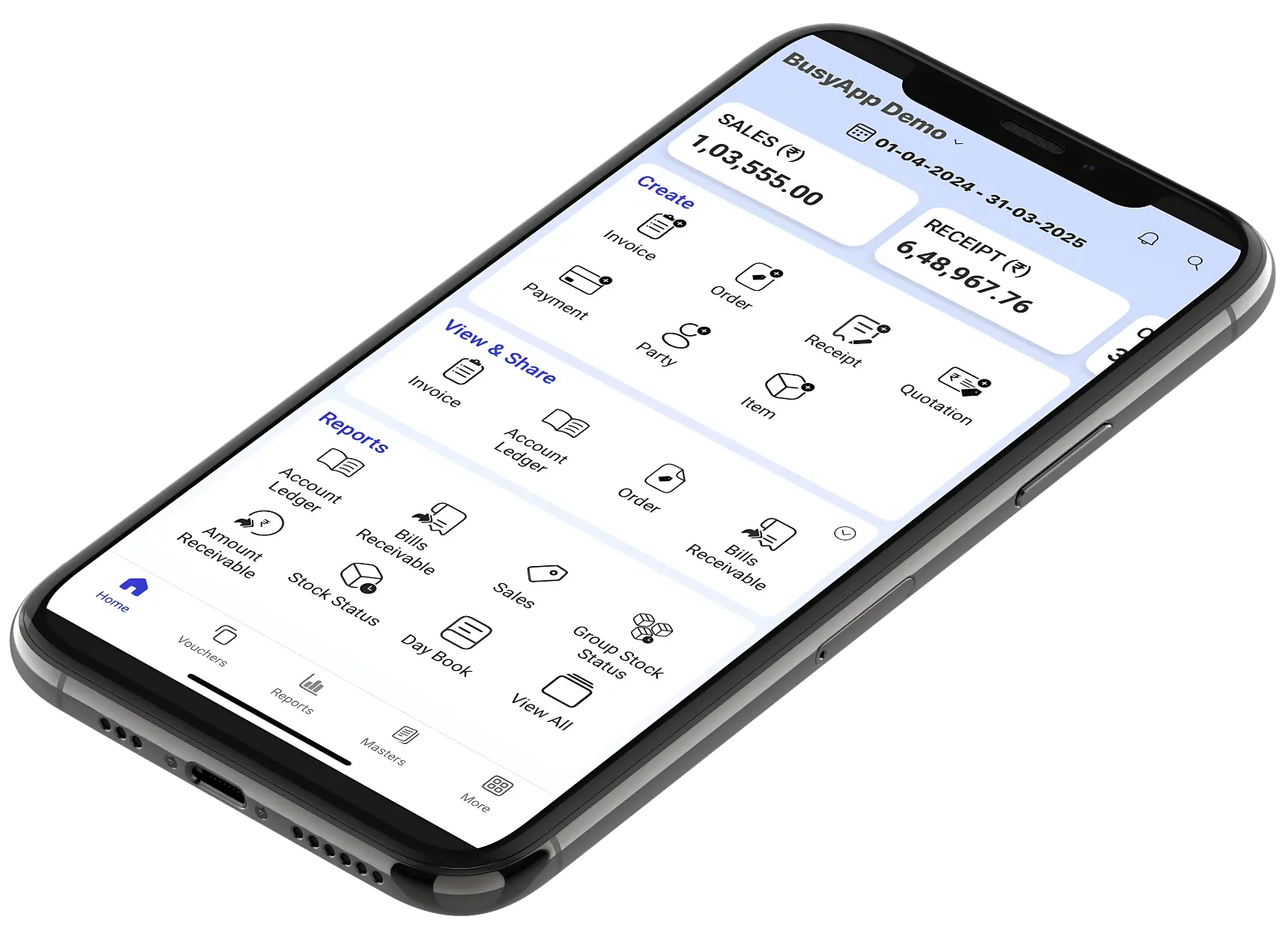
The BUSY Mobile Application seamlessly connects with the BUSY Desktop Software, providing mobile access to financial and accounting information. You can easily generate quotations, orders, invoices, receipts, payments, as well as create parties and items while on the move, enabling straightforward sharing of quotations and invoices through WhatsApp. The application delivers real-time updates for sales, purchases, receivables, payables, stock information, and offers over 100 reports, including stock reports, outstanding reports, and additional options.

Benefits of BUSY Mobile App

    On-the-Go Business Management
  • Take orders seamlessly from anywhere.
  • Generate invoices instantly and share them via WhatsApp.
  • Create and share quotations for quick business deals.

  • Smart Transactions & Data Management
  • Directly Create Party & Item Masters
  • Receipt Creation to accurately record received payments.
  • Payment Voucher Entry for seamless financial tracking.
  • Approval & Rejection of Vouchers for better control over transactions.
  • Voucher Cancellation to manage incorrect or unwanted entries.
  • Set Warning Alarms to get alerts for critical business activities.
  • Bill items quickly by scanning Barcodes or QR Codes.
  • Tag salesmen in Invoices/Vouchers for better tracking.
  • Apply filters based on Brokers in reports for detailed insights.
  • Directly call or mail customers from Masters for quick communication.

  • Advanced Reports & Insights
  • Access 100+ insightful reports, including Stock Reports, Outstanding Reports & more.
  • Easily filter and retrieve specific data based on your needs.

  • Enhanced Navigation & User Experience
  • Brand-new look with smoother navigation.
  • Separate Master & Voucher Listings for organized access.
  • Advanced sorting & filtering options in reports.
  • Get daily business summaries via push notifications.

Advantages of BUSY Mobile App

  • Seamless Sync – Access real-time data with BUSY Desktop Software.
  • Business On-the-Go – Create & share invoices, orders, and vouchers anytime.
  • Smart Financial Control – Manage payments, receipts, approvals & alerts.
  • Powerful Insights – 100+ reports with advanced filters & daily summaries.
  • Instant Printing – Print invoices & receipts via Bluetooth printers.
  • Easy Setup – Quick installation & configuration.
  • All BUSY Edition Compatibility – Supports all BUSY editions.
  • Live Data Access – 24/7 sync for financial & inventory updates.

Configuration of BUSY Mobile App [on Desktop]

  • Step 1. Click on the Mobile App section in the administration menu
  • Step 2. Click on Configure Mobile App
  • Step 3. Create BDEP ID
  • Step 4. Click on Save and Sync Data
  • Step 5. Create a Voucher Series for Transactions
  • Step 6: Create Mobile User’s and set permissions.
  • Step 7: Click Sync data
  • Step 8. BUSY Agent Configuration to enable automatic download and upload.

Core Features of the BUSY Mobile App

Seamless Business Management Anytime, Anywhere
Take orders, generate invoices instantly, and share them via WhatsApp. Create and share quotations effortlessly to close business deals faster.

Live Syncing for Real-Time Data Updates
Stay updated with Live Syncing, ensuring all transactions, reports, and records are updated in real-time without manual uploads.

Master Creation for Easy Data Management
Create and manage Party & Item Masters directly within the app, keeping customer, vendor, and product details well-organized.

Smart Transactions & Financial Control
Record receipts, enter payment vouchers, and manage transactions with better control. The Approval & Rejection of Vouchers feature ensures that only valid transactions are processed, reducing errors and unauthorized entries. Users can also cancel incorrect vouchers when needed, set warning alarms for critical business activities, and tag salesmen in invoices for improved tracking. Additionally, broker-based filters in reports provide deeper financial insights.

Fast Billing & Easy Sharing
Bill items faster with barcode and QR code scanning. Contact customers directly via call or email from Masters. Easily share invoices, quotations, orders, and receipts via PDF links on multiple platforms.

Powerful Reports & Business Insights
Access 100+ insightful reports, including Stock and Outstanding Reports. Use advanced sorting and filtering options for quick data retrieval. Stay updated with daily business summaries via push notifications.

Enhanced Navigation & User Experience
Enjoy a modern interface with smoother navigation. Separate Master and Voucher Listings keep data organized, while advanced filtering options simplify reporting.

Bulk Data Upload & Synchronization
Easily update records with the bulk upload utility, ensuring complete data synchronization and preventing discrepancies.

Dual Unit Functionality in BUSY Mobile App
Enhance your business management with dual unit functionality in the BUSY App, allowing users to add items in both primary and alternate units and view stock reports accordingly.

Get hands-on experience with the demo account
Explore the BUSY Mobile App’s features and reports for free with a demo account before purchasing.

Integration of the Salesman Module with the BUSY Mobile App

Easily tag sales representatives in vouchers and apply filters to reports related to them. It simplifies and speeds up your invoicing process, making it more efficient and user-friendly.

    Here’s how you can do it:
  • Step 1: Open the BUSY 21 (12.1) Desktop Version.
  • Step 2: Modify a cloud sync user.
  • Step 3: The salesmen range option will appear.
  • Step 4: Tag one or all selected salesmen for a particular mobile app user.
  • Step 5: Once this is done, open the BUSY Mobile App.
  • Step 6: Add an invoice > Select a party > Add salesmen option will appear
  • (Note:This option will not appear if you have selected one salesman option while configuring the cloud sync user in the BUSY desktop. In that case, the salesman will be automatically tagged).
  • Step 7: Select the salesman and enter all other relevant details > Save the invoice.
  • Step 8: Apply a filter to view reports by the salesman.
  • Step 9: Click the filter icon to check for a specific report (e.g., build a stable report).
  • Step 10: Select the salesman for whom you want to generate the report.
  • Step 11: View all relevant data for the selected salesman.

This feature will streamline your invoicing process, enhancing your overall business efficiency.

User Guide for BUSY Mobile App

How do you activate the BUSY mobile app using the activation code?
Upon purchasing a BUSY Accounting Software Mobile App license, you’ll receive an activation code via your registered email ID and mobile number, which is required to start using the app.

    Here’s how you can do it:
  • Step 1: Download the BUSY Mobile App
  • Step 2: Click on the BUSY App icon & specify BDEP ID details for the company
  • Step 3: Click on Proceed Securely
  • Step 4: The activation code screen appears
  • Step 5: Specify the activation code received on your registered email ID or mobile number

How to Change Device – BUSY Mobile App
Easily switch devices without losing access to the BUSY Software Mobile App. With OTP authentication, users can transfer their app activation to a new device hassle-free.

    Here’s how you can do it:
  • Step 1: Download the BUSY Mobile App
  • Step 2: Enter the login credentials
  • Step 3: Click on Proceed Securely
  • Step 4: Change Device Option Appears
  • Step 5: Click to Proceed
  • Step 6: List of Active Devices Appears
  • [You will find a list of devices on which the subscription is activated; select the device on which you want to deactivate the subscription]
  • Step 7: Enter the OTP Received on Device

How to Add a Company & Change the Financial Year
With the BUSY Accounting Software Mobile App, users can add and manage multiple companies, each with its financial years, providing flexibility and convenience.

    Here’s how you can do it:
  • Step 1: Download the BUSY Mobile App
  • Step 2: Enter the login credentials
  • Step 3: Click on Proceed Securely
  • Steps to Follow for Adding the Company
  • Click on the Company Name at the top > Click on Add Company > Fill in the required details > Click on Proceed > The new company will be added. You can switch between companies directly from the dropdown at the top.
  • Steps to Follow for Adding the Financial Year
  • Go to the More page > In the Settings section, find Change Financial Year > Click on the right side of Change Financial Year > A list of financial years will appear > Select the desired financial year > Click on Proceed to switch.

How to Download & Configure BUSY Mobile App

  • Step 1: Go to the Play Store/App Store
  • Step 2: Type BUSY Mobile App and tap to Install
  • Step 3: Once the BUSY App is Installed, Open the App
  • Step 4: Click on Get Started Option
  • Step 5: Fill in Details like— BDEP ID, Username and Password
  • [If you don’t have the BDEP ID, go to BUSY Administration Menu > Click on Mobile App > Click on Configure Mobile App > Create BDEP ID > Add the details asked for > Click on Save and Sync data]


This website is operated by an authorized partner of BUSY. The official website of BUSY Infotech Pvt. Ltd. is https://busy.in/

This website is operated by an authorized partner of BUSY. The official website of BUSY Infotech Pvt. Ltd. is https://busy.in/
© All Rights Reserved.
Back To Top